CopyClip 2 v3.993 for Mac
CopyClip 2 v3.993 for Mac
CopyClip 2 sits quietly and unobtrusively in your menu bar, helping you save your entire clipboard history everything you’ve copied or cut in the past. Moreover, thanks to its powerful search function, you can quickly find any text fragment previously saved by the utility.
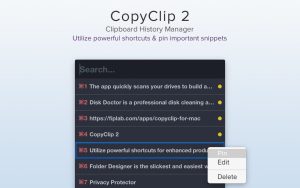
You can pin saved clippings, and they will be located at the top of the Edit list, where you can make any changes to the text or even Delete individual or all clippings at once. Keyboard shortcuts for the most essential functions allow you to do this very quickly.
CopyClip 2 comes with a built-in “Search” bar, which is especially useful for finding clippings containing specific text or characters you’ve copied in the past. You can easily copy search results to your Mac’s clipboard. You can “Pin” clippings so they appear at the top of the list, “Edit” them to make any changes to the clipping text, and even “Delete” individual or all clippings. CopyClip 2 supports keyboard shortcuts.
CopyClip 2 v3.993 for Mac Never Lose a Copied Text Again
How many times have you copied something, then copied something else and lost the first thing forever? CopyClip 2 makes sure that never happens again.
CopyClip 2 silently saves everything you copy in the background text, links, code snippets it’s all there when you need it. Keep up to hundreds of clips in your history and search instantly.
What’s New in Version 3.993
Version 3.993 fixes pinned clips so they keep their order instead of moving around as new clips are added. It also adds an Advanced setting to choose whether newly pinned clips go to the top or bottom of the pinned list, brings compatibility improvements for the latest macOS App Store receipt validation requirements, and improves window handling on macOS Tahoe to reduce crashes.
Key Features
Instant Search Type to filter your clipboard history in real time. Whether you copied it five minutes ago or five days ago, search brings it back instantly no scrolling, no guessing.
Pin Your Favourites Keep your most-used snippets pinned to the top of your list SSH keys, email signatures, API tokens, addresses always visible and easy to access.
Keyboard First Open CopyClip with a global shortcut, navigate with arrow keys, and paste with Enter. Use Command + number to instantly paste any of your first ten clips your hands never leave the keyboard.
Privacy & Security Pause clipboard recording when handling sensitive data. Set history limits, exclusion rules, and display preferences to keep things safe and organized.
Store Up to 230 Clippings CopyClip 2 can store up to 230 clippings and lets you paste with original formatting if desired keeping rich text intact when you need it.
Compatibility: macOS 11.5 or later
If you copy and paste text regularly on your Mac, CopyClip 2 v3.993 is one of those tools that quietly becomes completely indispensable within the first hour of use.


BatchPhoto Pro 5.1.1 for Mac

UPDF 2 – AI-Powered PDF Editor 2.5.3 for Mac

OmniOutliner Pro 6.2 for Mac
About Author
